MOUSE AND KEYBOARD FUNCTIONS IN Quick3DPlan® DS
Using the mouse and keyboard
Use the mouse to select commands, entities in the drawing, and drawing points. Use the keyboard to enter numbers and text.
Quick3DPlan® DS requires a mouse with at least two buttons. A mouse with three buttons will enable you to pan the drawing on the screen. In addition, if the third button is a wheel, you can use it to zoom in and out of the design.
Make sure that the three buttons work correctly. If they don't, reinstall the mouse drivers in your system, or contact your computer's dealer or technical support.
|
LEFT BUTTON:
|
|
 Selection: Use it to select the menu options, icons, dialog boxes, and command parameters. Selection: Use it to select the menu options, icons, dialog boxes, and command parameters.
Double clicking on any object: Use it to directly edit the selected object.
|
|
RIGHT BUTTON:
|
|
 Rotate view 3D: Clicking and holding this button you can rotate the view. This option is available in 3D mode only. Rotate view 3D: Clicking and holding this button you can rotate the view. This option is available in 3D mode only.
If you are not using any other function, when you right-click, a text menu will open.
- If nothing has been selected the following menu will open:
- If an object has been selected, a text menu for that object will open. By right-clicking on any element of the design (furniture, appliances, accessories or closets), the following menu appears:
|
FURNITURE

|
APPLIANCES

|
|
Available options:
|
Available options:
|
|
|
|
|
ACCESORIES

|
CLOSETS

|
|
Available options:
|
Available options:
|
|
|
CENTER BUTTON/WHEEL:
|
|
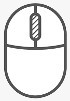 Pan: Clicking and holding the central button/wheel pans the drawing to center it on the screen. Pan: Clicking and holding the central button/wheel pans the drawing to center it on the screen.
Zoom: Scroll up/down the wheel to zoom in/out.
|
|
KEYBOARD:
|
|
 Repeat the last command: Press the spacebar to repeat the last command without having to click on its icon. Repeat the last command: Press the spacebar to repeat the last command without having to click on its icon.
Ctrl + Z: Clicking on the "Control + Z" keys will undo the last modification (NOTE: Not every action can be undone).
|

